Command line tools
Tools for maintaining your UNIX platform
Current CLI
A new version of the CLI was released on 21. december 2023.
If you are looking for the old CLI you can find the documentation here.
Compatibility
The tools are compatible with the following distributions.
- Amazon Linux, version 1, 2 and 2023
- Debian, version 10, 11 and 12
- Armbian, version 10, 11, and 12
- Ubuntu, version 20.04, 22.04 and 24.04
- CentOS, version 8 and 9
The script will check to see if it is running on one of these OSes and stop executing if not.
Running on CentOS 9
You should run this command first.
dnf install -y wget nanoUsage information
The Tempus Serva Linux script tools are open source (LGPL), and you are free to use and modify them however you see fit. The tools are defined by one python3 script and a single json file that stores the config.
As the tools themselves are subject to semiautomatic upgrades, we strongly recommend that you keep backups of files you have modified. Future versions of the scripts are not guaranteed to be compatible, with earlier versions or your own modifications.
Installing the tool
To install the tools, run:
wget -qO - https://builds.tsnocode.com/helpers/install | bashThis will check compatibility and install the required plugins.
To use the tool, execute ts.
On first execution the tool will ask a couple of questions.
Currently the beta release is not implemented for java 11.
Basic usage
The basic way to use this tool to get an instance running is this:
- Run the command
ts install- Accept Java 11
- Accept Tomcay 9
- Accept alternative user (if prompted)
- Set timezone
- Accept symlink creation
- Choose to install reverse proxy
- Choose not to proxy a domain
- Optional: Grant TS developers access to ssh into the server
- Optional: Install a server banner (shown on login via ssh, recommended)
- Run the command
ts install-alphaapp- Optional: Give the app a name (will be shown in the url and is limited to a-Z, 0-9 and -_)
- Optional: Set a new password for the admin user
- Run the command
ts proxy- Input the domain(s)
- Choose to proxy everything with one domain
- Optional: Choose to install ssl
- Input the domain(s)
- Optional: overwrite the info-email
Tool reference
To get the full list of commands, and a description, run ts --help.
quick-install
Installs all the required software to run TS NoCode Platform, a default webapp named 'app' and a redirect from root to 'app'.
It will not ask for anything, but uses default values.
install
Installs all the required software to run TS NoCode Platform.
It will ask questions about optional stuff.
install-app
Will install a new TS NoCode Platform webapp. It ask what release to install from and what name the webapp should be deployed under, if that webapp exists it will ask if you would like to upgrade that installation instead.
upgrade-app
Will upgrade an existing TS NoCode Platform webapp. It will ask what release to upgrade from and what name the webapp should be deployed under, if that webapp doesn't exist it will do nothing.
set-admin-password
Will set the admin password for an existing TS NoCode Platform webapp. Will ask what webapp to modify and what the password should be set to.
install-ssl
Will install all dependencies that are needed to setup a LetsEncrypt SSL certificate. Will ask if SSL should be setup once the install completes.
setup-ssl
Will ask about domain(s) and contact-email, request and install an SSL certificate and setup auto-renewal.
make-luks
Will help setup LUKS encryption on a secondary drive.
Must be run before the install-command!
Quick install
To quick-install the tool and a webapp run this
wget -qO - https://builds.tsnocode.com/helpers/install | bash && ts quick-installIf you also want to setup SSL, run this
wget -qO - https://builds.tsnocode.com/helpers/install | bash && ts quick-install && ts install-sslRemoving the tools
Remove the two files, eg by running:
sudo rm /usr/bin/{ts,tsconfig.json}Legacy CLI
Compatibility
The scripts require the use of Tomcat application server, primarily for EC2 instances.
The shell tools are compatible with the following distributions
- Amazon linux 2
- Ubuntu Server
- RedHat/CentOS linux (experimental)
Other versions are likely compatible if they support yum installer.
JBoss tools are currently under development (no scheduled release date).
Usage information
The Tempus Serva Linux script tools are open source (LGPL), and you are free to use and modify them however you see fit. The tools are defined by all files with the .sh or .bat extension.
As the tools themselves are subject to semiautomatic upgrades, we strongly recommend that you keep backups of files you have modified. Future versions of the scripts are not guaranteed to be compatible, with earlier versions or your own modifications.
Installing the tools
Execute the following commands from your UNIX command line
cd /usr/bin
sudo wget -N https://tempusserva.dk/install/amazon-linux2/script/tsrefreshscripts
sudo chmod 777 tsrefreshscripts
tsrefreshscripts
The tools are installed into /usr/bin, and made available for all users with access to the server.
The short-hand version to install the tools is:
wget -qO - https://tempusserva.dk/scripts | bashQuick Install
To quick-install the tools and setup TempusServa, run:
wget -qO - https://tempusserva.dk/install/amazon-linux2/tsquickinstall | bashTool reference
All script variables are controlled from a single file
| tsconfiguration | Variables: Paths for the installation and timezone localization |
Installation
All installers will ensure that underlying depencies are installed too
- Java
- Tomcat
- MySQL
- MySQL driver
- TrueType fonts
A check is completed before each install operation
| tsinstall | Installs Tempus Serva and all dependencies to /TempusServa and names databases: tslive, tstest, tsbase |
| tsinstallinstance [application] | Installs Tempus Serva and all dependencies to [application] and names the databases [application] + postfix: live, test, base |
| tsquickinstall | Installs Tempus Serva and all dependencies to /TempusServa, files are saved to root home folder and names databases: tslive, tstest, tsbase |
| tsinstallnightly [application] | Installs Tempus Serva and all dependencies to [application] with a nightly build. And names the databases [application] + postfix: live, test, base
Note: Use in production environments at your own risc |
Update with newer version
During an upgrade the following operations are performed
- Tomcat server is stopped
- Database is backed up
- Binaries are backed up
- New binarys are installed (TempusServa.war)
- New base definitions are imported (xxxbase database)
Note: Remember to start the server after upgrades
| tsupgrade | Upgrades the /TempusServa default installation |
| tsupgradeinstance [application] | Upgrades the application by the name [application] |
| tsupgradebetatest [application] | Upgrades the application by the name [application] with a nightly build. The backup step is skipped, and the server is automatically started.
Note: Use in production environments at your own risc |
System information
| tsstatus | Lists various informations
|
| tsusageinfo [instance] | Retrieves information from [instance] about user and solution names |
| tslogsgrep [search] | Fetches information from Tomcat log files, that contains [search] |
| tslogstail | Fetches information from Tomcat log files |
Server maintanence
| tsboot | Performs normal boot operations
|
| tsstop | Stops both MySQL AND Tomcat |
| tsstart | Starts both MySQL AND Tomcat |
| tsrestart | Stops Tomcat and starts it again (use: patch, change connection string etc) |
| tstomcatstop | Starts Tomcat |
| tstomcatstart | Stops Tomcat |
| tstomcatrestart | Stops and starts Tomcat |
Database access
Note the following scripts do not take care of firewalls etc.
| tsmysqlremotestart | Creates remote user with DB access and prints credentials to screen |
| tsmysqlremotestop | Removes remote user and permissions |
Other usefull scripts
| tsbackupfull | Backups the database and runtime of ALL applications |
| tsbackupinstance [application] | Backups the database and runtime of an application named [application] |
| tsrefreshscripts | Check for updates and installs new versions of these scripts (tsxxx.sh) |
| tscloneinstance [source] [target] | Make a complete copy of another solution (source) |
Removing the tools
Execute the following command from your UNIX command line
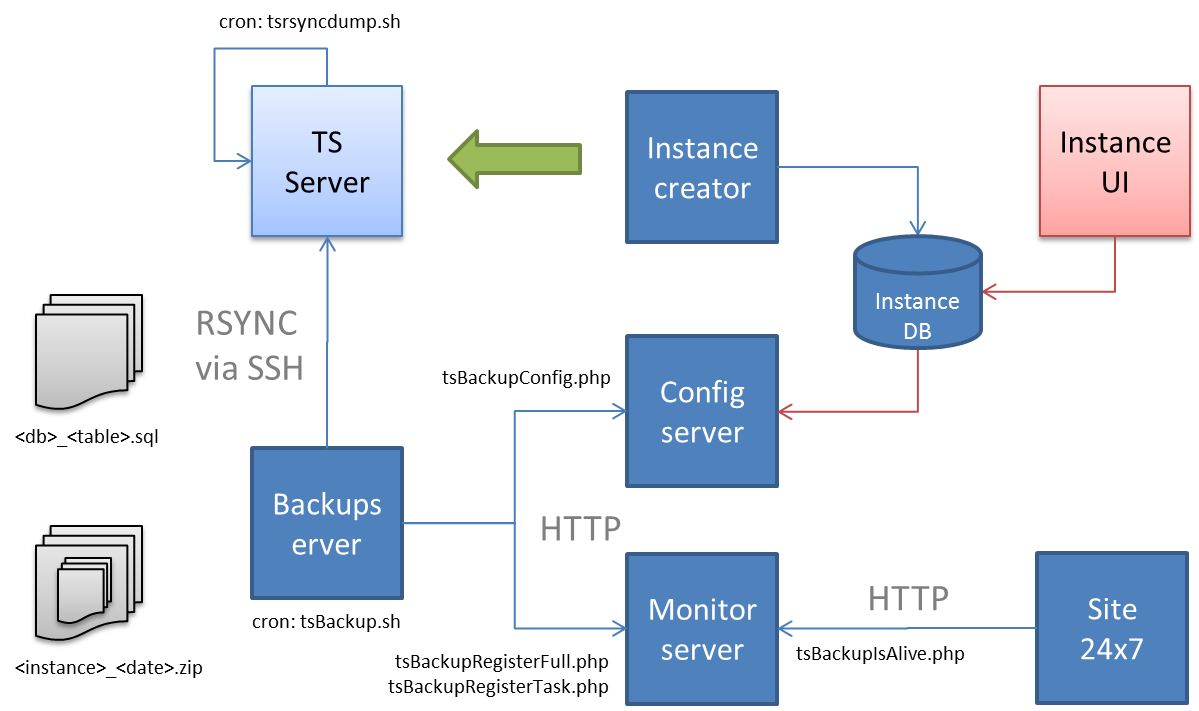
wget -qO - https://tempusserva.dk/install/amazon-linux2/clean | sudo bashCloud backup overview
Backup of Tempus Serva instances running in AWS is done in the following manner
- Instance saves .sql for each table in the database
- Remote backup server
- Rsyncs the files from EACH instance
- Build daily archives containing all .sql files
- Registers succesfull backup on the monitor server
- Site 24 polls the monitor server
- If failed: Sends warning emails
The backup setup is part of the server creation service