Access Control
How permissions work
- Blocks
- External access
- Multi tenancy
- Permissions
- Understanding access control
- User Cloning
- User Profile
Blocks
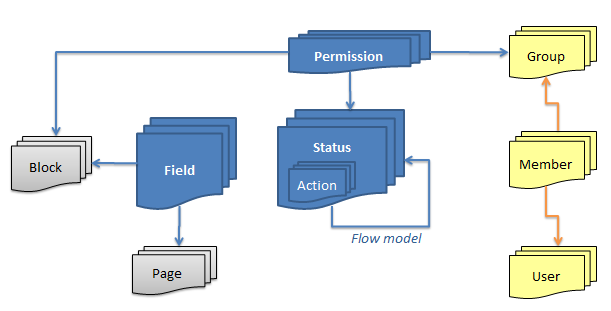
Blocks are permission "groups" for fields, ensuring that permissions only have to be set once for each "type" of information.
Permissions in a solution point to fields via the block related to the field.
External access
It's possible to grant external users access to very limited parts of the system.
This is done using webinterfaces and time based tokens.
One way this feature can be used to grant external (anonymous users) access to input data, eg. support tickets or applications.
Another way this feature can be used is to grant external (anonymous users) access to update a specific record in a specific status.
Authenticating external users
An authentication flow can be added to the external access.
This is especially useful when an external user accesses sensitive information.
For external authentication the TS NoCode Platform supports MitID.
Multi tenancy
Usages
TS has built multi-tenancy support allowing to build segregated applications for multiple parties, while still having users working across organizational units.
Data in the system can be handled in different ways
- Owned by a single group of users
- Shared resource across groups (often readonly)
- Hidden resource (templates etc.)
Essentially this feature is just one of the ways Advanced permissions can be configured.
SAAS onboarding
In TS it is quite easy to build SAAS application, because the onboarding can be fully automated.
The process includes
- User signup form
- Optionally accept from administrators
- Optional: Contract
- Generate and send contract
- Digital signing of contract
- Profile creation
- User and group creation
- Welcome information
Context switching
Users not belonging to a tenant group will sometimes need to impersonate one.
By clicking the context swtcher component, the system start to behaving as if that user was a tenant of that group.
Permissions
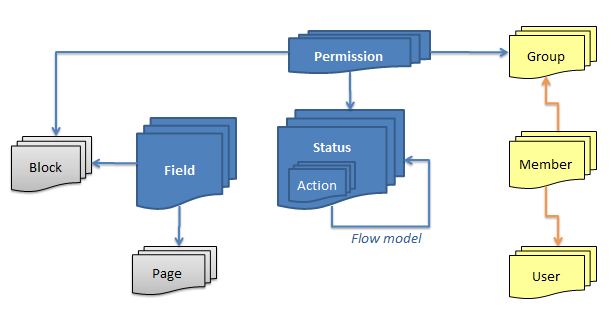
Permissions tie together
- Groups
- Blocks (optional)
- Status (optional)
Permissions are stackable, so if higher permissions are given through one group, they will override lower permissions from other groups.
The exception is the usage of the DENY permission, which actually works in reverse: A single of the users groups with a deny permission, will supersede all other permissions.
Understanding access control
Usages
TS are based on a principle of building ONE application for MANY users.
Instead of building and maintaining multiple user interfaces, rules declarations restrict what a user can do
- What fields are available
- When records are available
- Whet records are available
Practically any set of rules can be built combining Field access and Data ownership.
Access policies
The basic Access policies controls the users access to
- Which Fields are available
- Which Status can be accessed
Permission policies stack together and include
- User group
- Field group (optional)
- Status (optional)
This allows for many combination usecases such as
Let Managers READ all data anytime
Let Managers EDIT the pricing when Status is Draft
Let Customers READ all data when Status is Order delivered
Let Administrators EDIT anything anytime except Pricing
Data ownership
Data ownership will restrict which record in an entity the user can see.
Different access restrictions exists
- Group membership (aka Exclusive groups)
- Personal record
- Access control lists
- Named users
- Named groups
Classic Multi tenancy is built by utilizing group data ownership.
Note: Depending on the setup the server can run with single or multiple Exclusive groups.
Other access controls
Many other components in the platform have configuration options to make them available to a single group
User Cloning
This will allow you to create other users, with the same permissions as yourself.
In the user creation process, you will be granted the option to define which of your own group memberships, should be copied to the new user. The user will automatically receive an email invitation, along with a randomly generated password.
Note that
- Special properties like 'User creator/editor' or 'Administrator' are never copied.
- Any Exclusive groups that you belong too, are always copied to the new user.
How to activate this feature
- User must have the User creator/editor property set
User Profile
This personal function allow you to change your password or personal contact details.
ARTICLE WRITING IN PROGRESS ...