# Permissions
About users, groups and how to control access
# User creation
Users can be created both in frontend and the designer
## Designer user creation
### Creating users
Users are created in one of the following places:
- DESIGNER > Users > Add new user
- DESIGNER > Users > Edit users > Add
- DESIGNER > Users > Mass create
During creation remember til check the "Active" checkbox, if you want the user to be available right away. Note that this will trigger the automated Welcome message for the user. Sending this messsage for inactive users after the initial creation, will require you to manually check of the options "Reset password and email to user" and "Include welcome message".
### Customizing messages
The user messages can be configured in:
- DESIGNER > Modules > Static content > "Template.WelcomeUser"
- DESIGNER > Modules > Static content > "Template.PasswordReset"
For user invitations / password resets the following tags will be populated
- {APPLICATION}
- {LOGINURL}
- {USERNAME}
- {PASSWORD}
## Frontend user creation
Normal users can be allowed to create new users, if their profile allows it.
- DESIGNER > Users > Edit users > \[user in question\] > "User creator/editor"
Having this permission the user can create users, by pressing the "create user" button in the main menu. The dialog will prompt for basic user information, as well as which groups the new user should be a member of.
The following restrictions apply
1. Exclusive group will allways be copied
2. Only groups to which the creator belongs may be used
3. At least one group memebership must be cloned
After the user is created a welcome message will be sent to the user.
Note: It is not possible for normal users, to edit other users after they are created.
# User Group Membership
Tempus Serva uses a classic permission structure with some minor extensions
**Users**
- User profiles can be bound to existing AD/LDAP repositories
- Special properties on users include
- Administrator: Allow access to backend
- Data handler: Bulk upload data
- User creator
**Membership** is the relation between a user and a group
- Previous membership are logged in the database for forensic purposes
**Groups** are list of users tied to certain permissions in solutions
[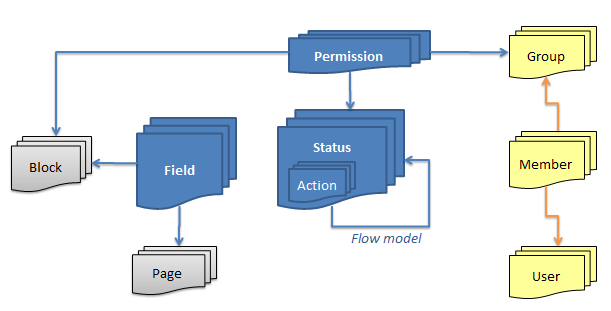](https://docs.tsnocode.com/uploads/images/gallery/2025-08/dpw4oJBDwV3MJrB5-image.png)
## Subgroups
If the policy doAdvancedGroupSecurity is enabled subgroups is enabled. Eg. groups can be nested under each other.
### Assigned Groups
When using subgroups with Assigned groups, the parent group gains access equal to all the subgroups.
This can be used to create a super-user group that has all other groups as subgroups, thus allowing access to the entire system, without granting the super-user group direct access.
### Exclusive Groups
When using subgroups with Exclusive groups, the parent group gets access to all records tagget with the sub-groups.
This can be used to create sub-departments and having a supervisor with access across.