
WebDAV
About our WebDAV implementation
Supported document types: Word, Excel, Powerpoint.
The implementation does not require SSL to be enabled on the server, but it is recommended.
Sometimes the action of saving a file, that was opened using WebDAV will fail, but only the fist time, if it happens at all.
To fix this, you just have to save the document again, and the issue will be gone for you, until you re-sign-in.
How to enable
Toggle the policy webdavSupport and webdavSessionTokens to true.
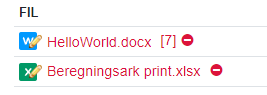
When WebDAV is enabled, the files-field, will add tiny pencils next to the supported file-types.
Clicking on the file icon will prompt the file to be opened in the associated application. Clicking on the filename, will prompt a download of the file.
You can control how long the auth-tokens are valid for, using policy webdavSessionLifetime.
You can control whether a token should automatically be re-validated if it times out using policy webdavSessionTokensRevalidate.
Testing WebDAV
Upload a word or excel file to a file field and save the record.
Re-open the record and click the type icon with the pencil next to the file name.
If the appropriate program opens, edit the file and save it.
Close the program.
Open the file again (either download it or re-open it via WebDAV), if your changes are still there, WebDAV is working.
Common config issues
The following policies have to be set up correctly, otherwise the WebDAV feature will not work.
applicationServer
applicationIsBehindAReverseProxy
applicationName
applicationBasePath
securitySslPages
Enabling basic auth to your server
Office has stopped officially supporting Basic-auth, which is the backup authentication for our implementation.
To allow Office to connect to your server, and authenticate using Basic-auth, execute the following command, as admin, from the commandline.
REG ADD HKEY_CURRENT_USER\Software\Policies\Microsoft\Office\16.0\Common\Identity /t REG_EXPAND_SZ /v basichostallowlist /d "HOSTNAME"Where HOSTNAME is the domain of your server, eg. wiki.tsnocode.com.
How to enable support in LibreOffice on Debian
Run the following commands
xdg-mime default libreoffice-writer.desktop  x-scheme-handler/ms-word
xdg-mime default libreoffice-calc.desktop  x-scheme-handler/ms-excel
xdg-mime default libreoffice-impress.desktop  x-scheme-handler/ms-powerpoint