
Give rating
How to give a rating on a submitted recording.
This introduction is available as a video and as a written article.
[INSERT VIDEO]
When a parent responds to one of the notifications to upload a video of their child, you, the responsible clinician, will receive an email about this, and the recording will be shown on your dashboard.
Clicking the link in the email, or the record in the list on your dashboard, redirects you to the recording, and a list of assessments of this specific recording.
At the top of this page, you will find two buttons: Give assessment and invite colleague to give an assessment.
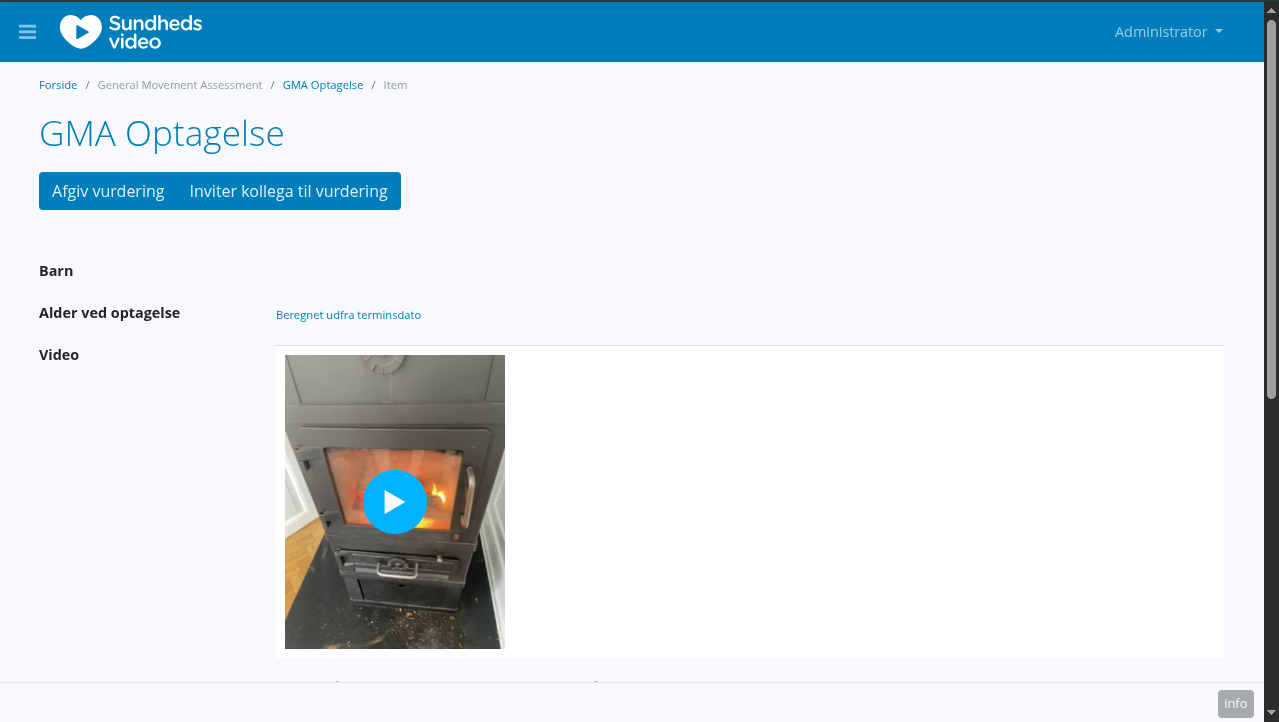
Because this is test data, the name and age of recording of the child is missing, and it is a random video of a fireplace.
When clicking "Give assessment", yout will be shown the following page.
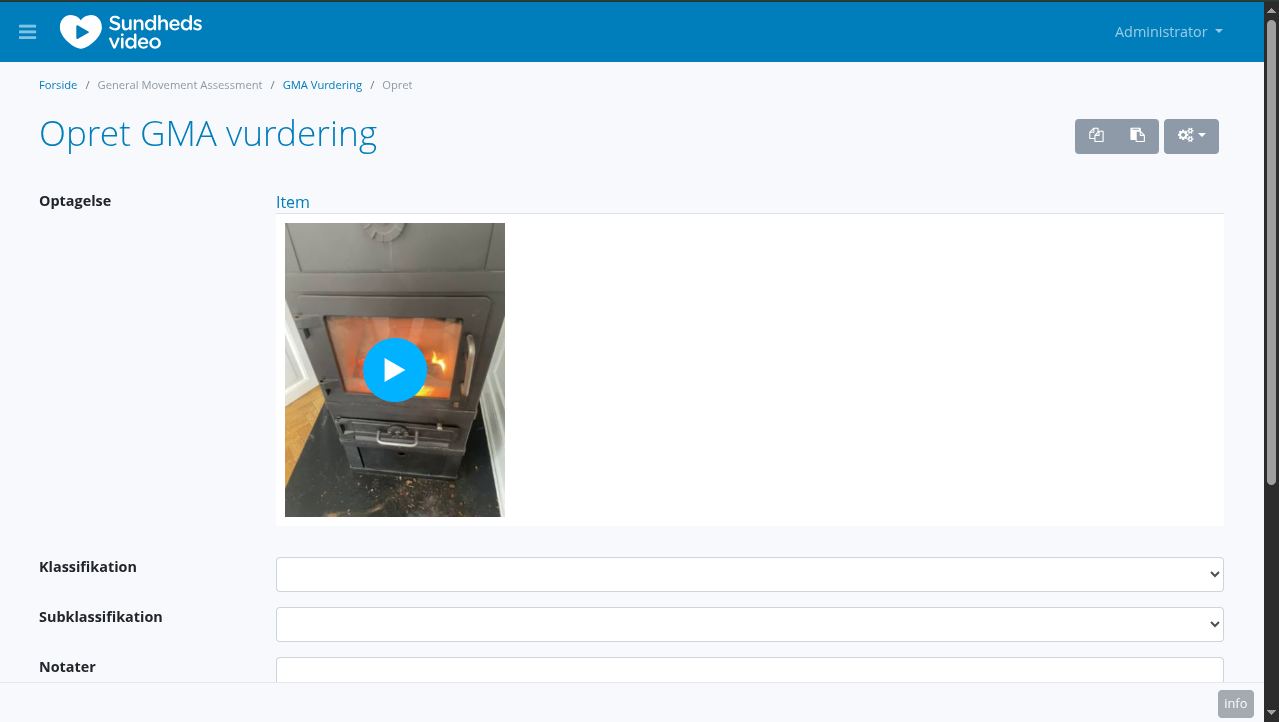
Because this is test data the system doesn't show the name and age of the child above the video.
On this page you can select a classification and sub-classification and write a couple of notes, if needed.
Once you are done, click the "save" button and you will be redirected back to the recording.
Here you will be able to see the assessment you just gave.
Inviting a colleague will be covered on the next page.
If you are done assessing the recording, scroll down on the page, click save and you will be redirected to your dashboard.
The recording is now marked as reviewed and should not be visible on your list of received recordings.